
 Français
  Español
  Português (Brasil)
  한국어
한국어  日本語
日本語  Italiano
  Türkçe
  简体中文
简体中文 A complete simulation studio, focused on the consultation.
Every tool a surgeon needs to show a proposed result on the patient's own photo, and nothing that slows a consultation down. Native on Windows and macOS, in nine interface languages.
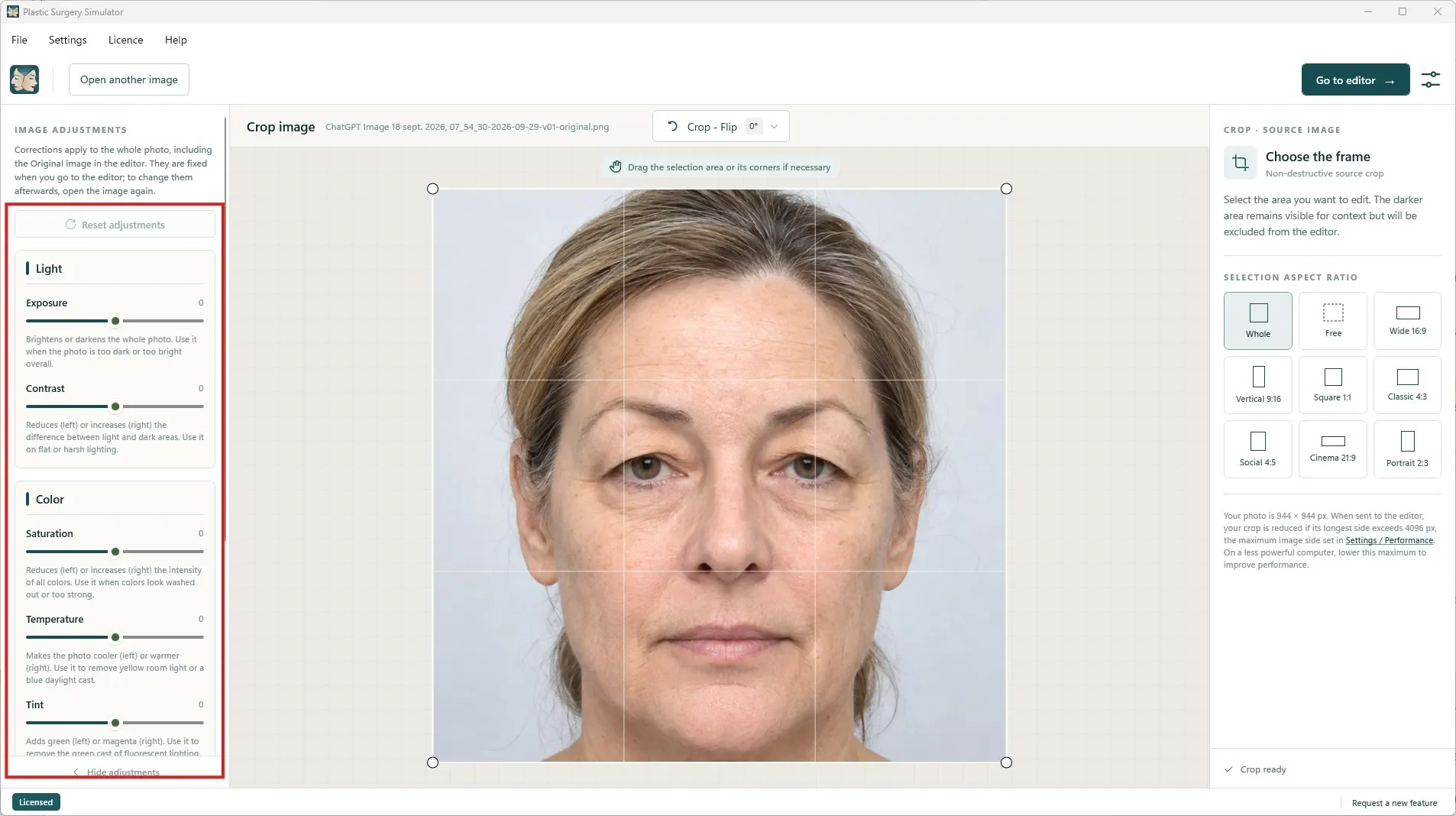
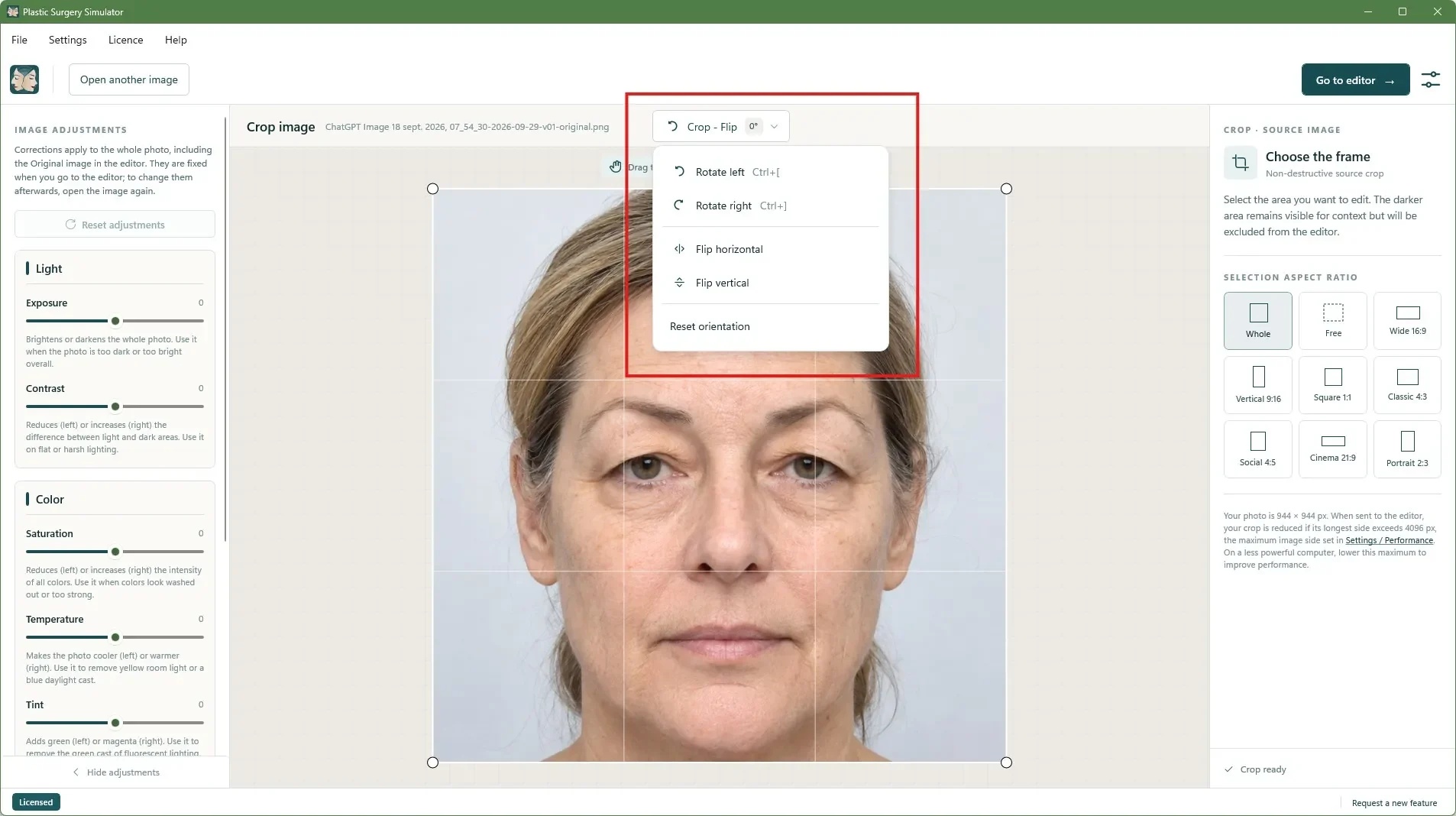
Open, frame and correct the photo.
Open JPEG, PNG, BMP, TIFF or HEIC photos, or drop one anywhere on the window. Crop with a preset ratio or by dragging the corners, rotate and mirror, then correct light and colour before you simulate.
- Image adjustments: exposure, contrast, saturation, temperature, tint and red balance, plus black and white.
- Crop presets: 1:1, 4:5, 4:3, 2:3, 16:9 and more, for a consistent frame from one patient to the next.
- The imported file is never modified.
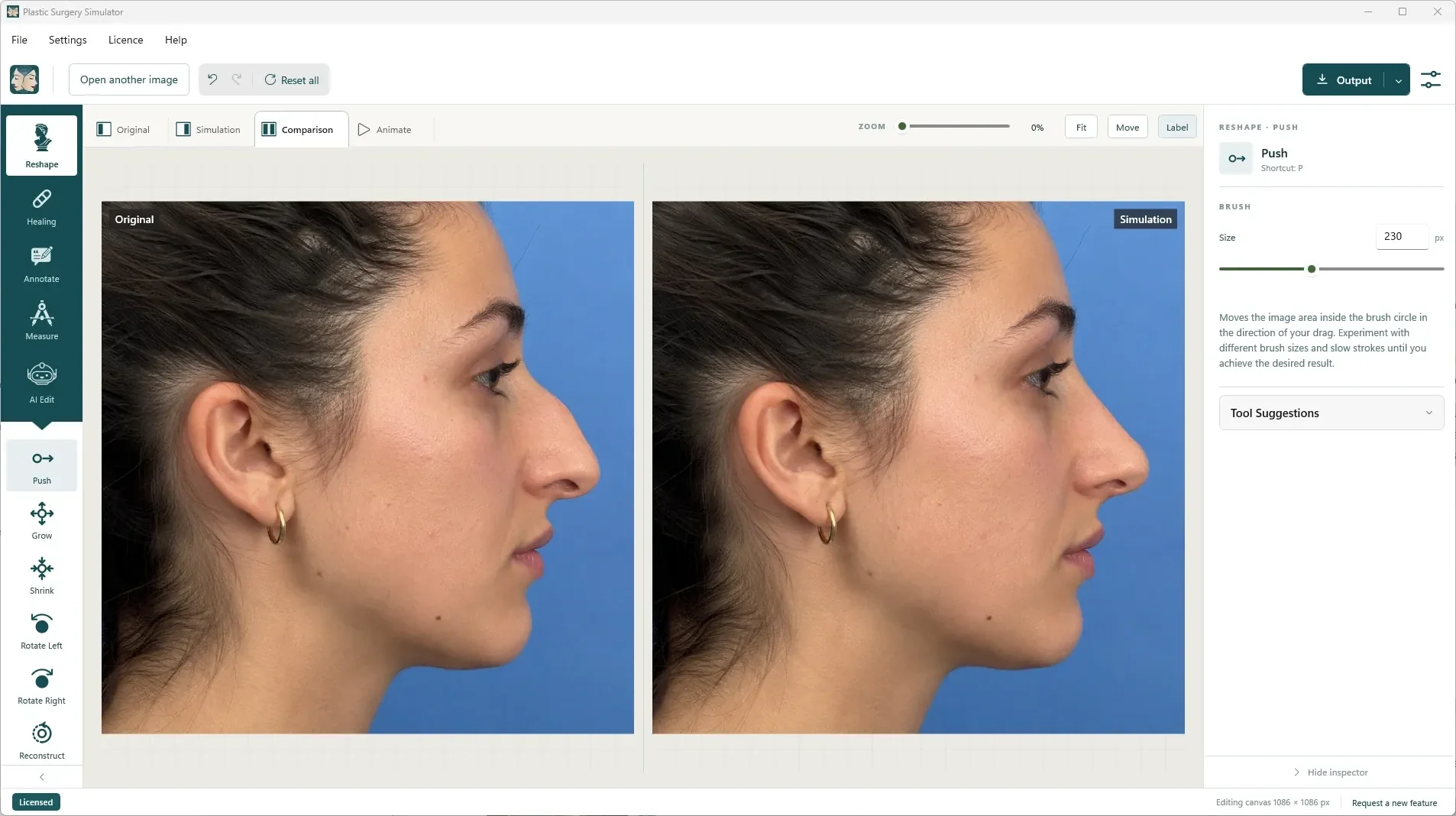
Six brushes that reshape the patient's own photo.
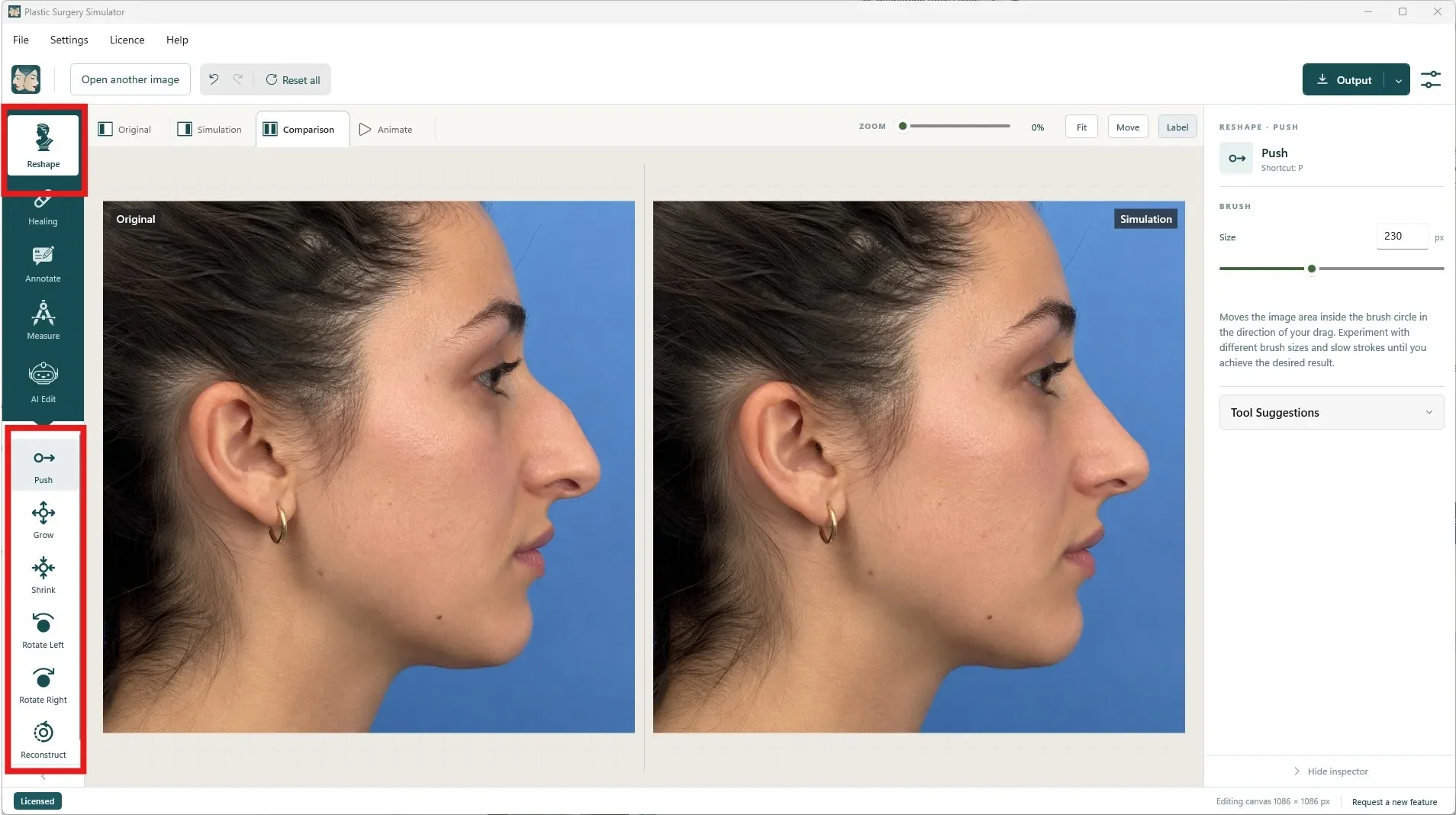
The reshaping brushes remodel shapes and volumes, on the face and the body: refine a nose, project a chin, define a jawline, enlarge breasts or lips, slim a waist. Each stroke can be undone, and the original is always one click away.
Push
Drag any contour where you want it: dorsal hump, tip, chin, jaw, lips, waist. The most versatile tool in the app.
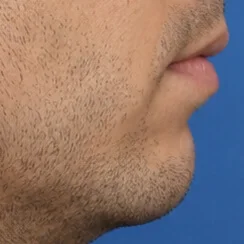
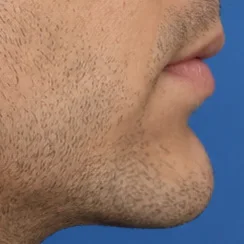
Grow and Shrink
Add or remove volume with each click: breasts, lips, cheeks, nasal tip, nostrils. Build the result in small, controlled steps.
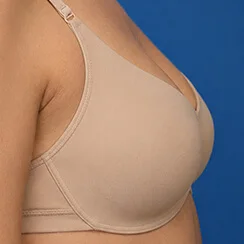
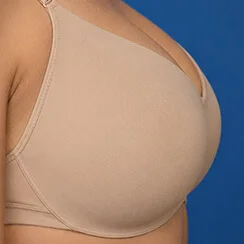
Rotate Left and Right New
Turn the area under the brush without enlarging or shrinking it. Straighten a deviated nose, tilt a brow or a lip corner.
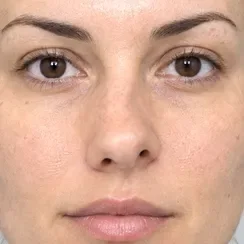
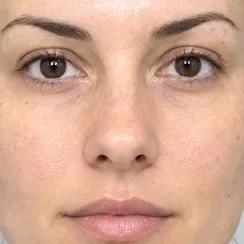
Reconstruct, Undo and Reset
Brush over any changed area with Reconstruct and it returns progressively to the original, without touching the rest of the simulation. Undo and Redo step through your actions, and Reset starts again from the opened photo.
- Real-time, GPU-accelerated deformation.
- A keyboard shortcut for every tool.
- Zoom in for precise work on small features.
Spot healing for wrinkles, moles and scars.
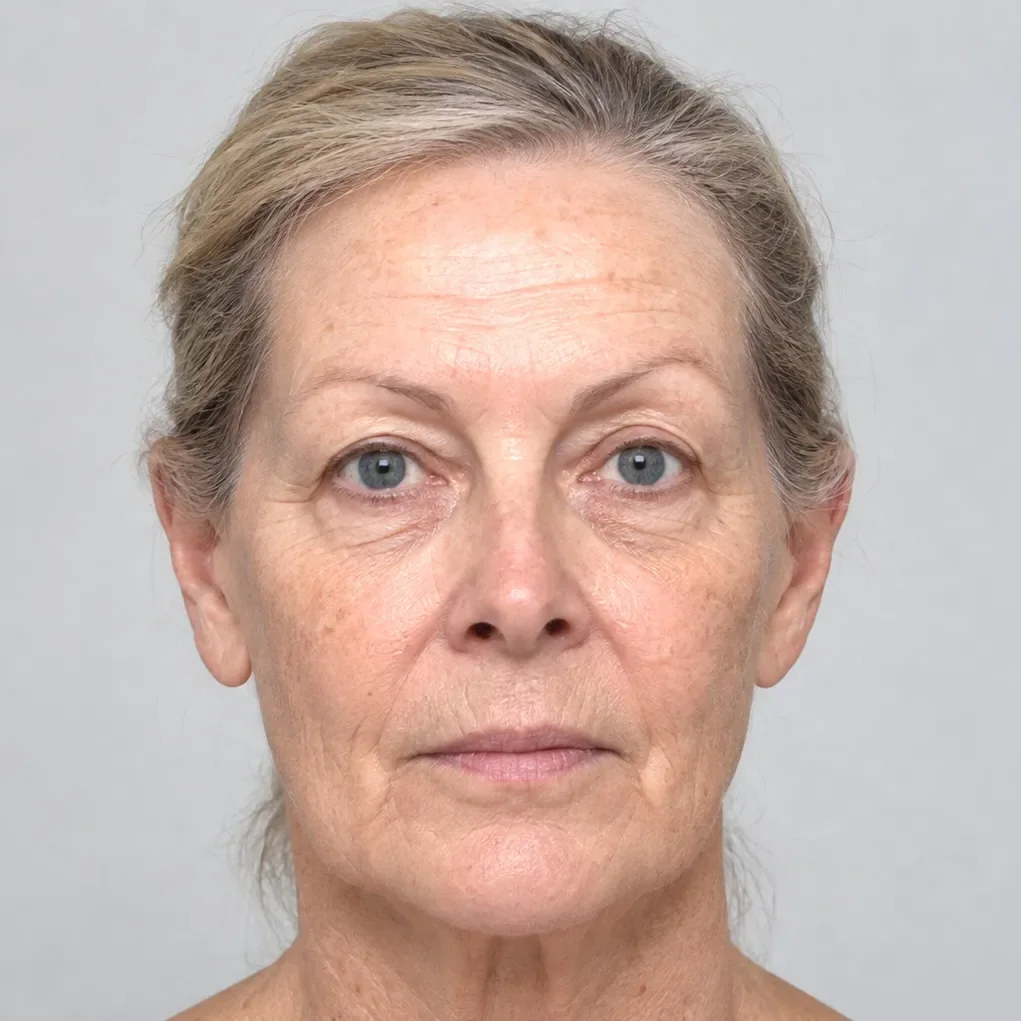
Click a mole or brush along a wrinkle and it blends into the surrounding skin. Use it on its own for skin consultations, or as the finishing touch on any simulation.
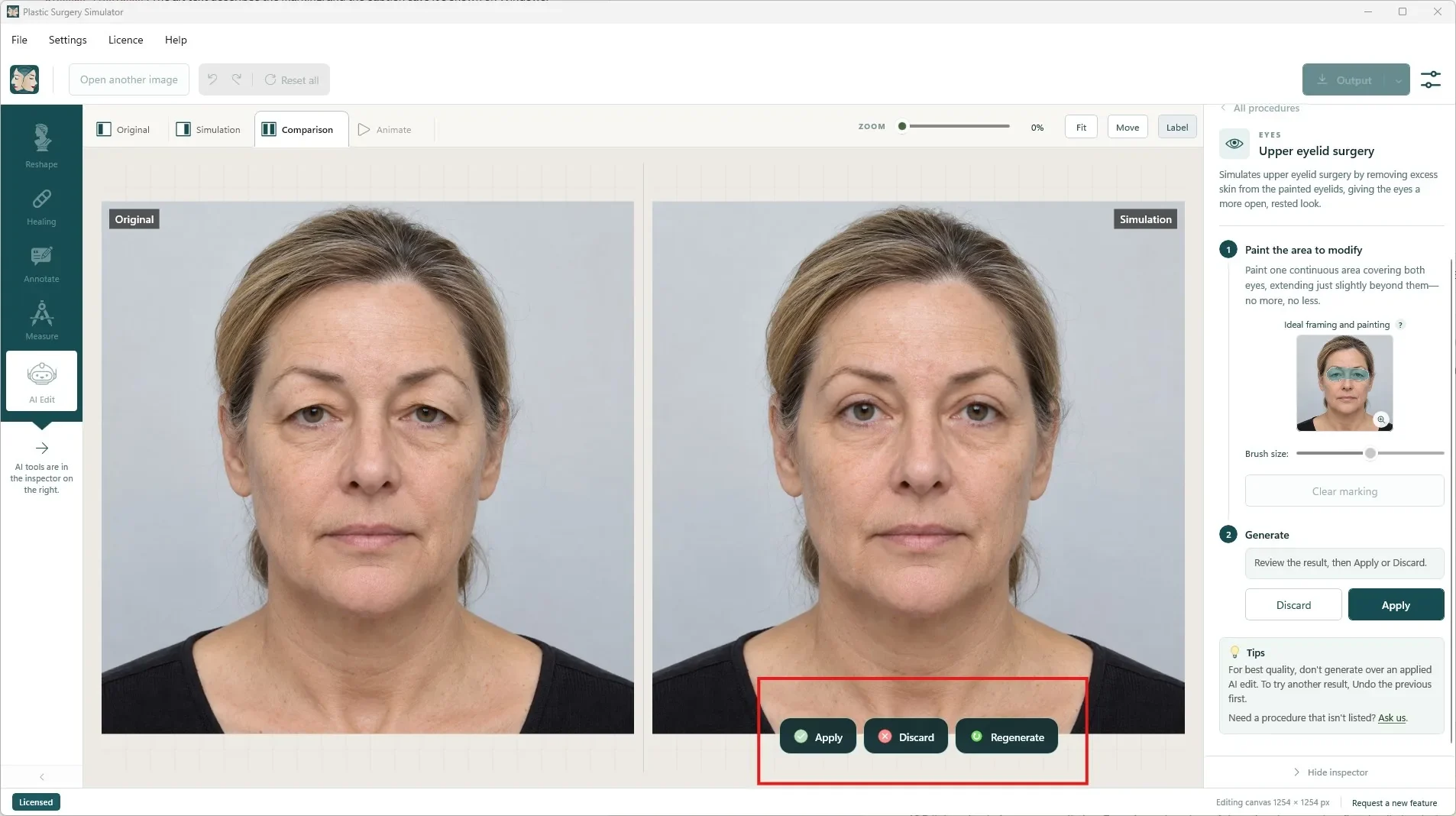
For what reshaping can't do.
Upper eyelid and under-eye bag surgery, Asian eyelid surgery, lower facelift, face and neck lift, upper face Botox, hair transplant, teeth whitening, veneers and eye colour. Choose, paint, generate: under a minute, typically a few cents.
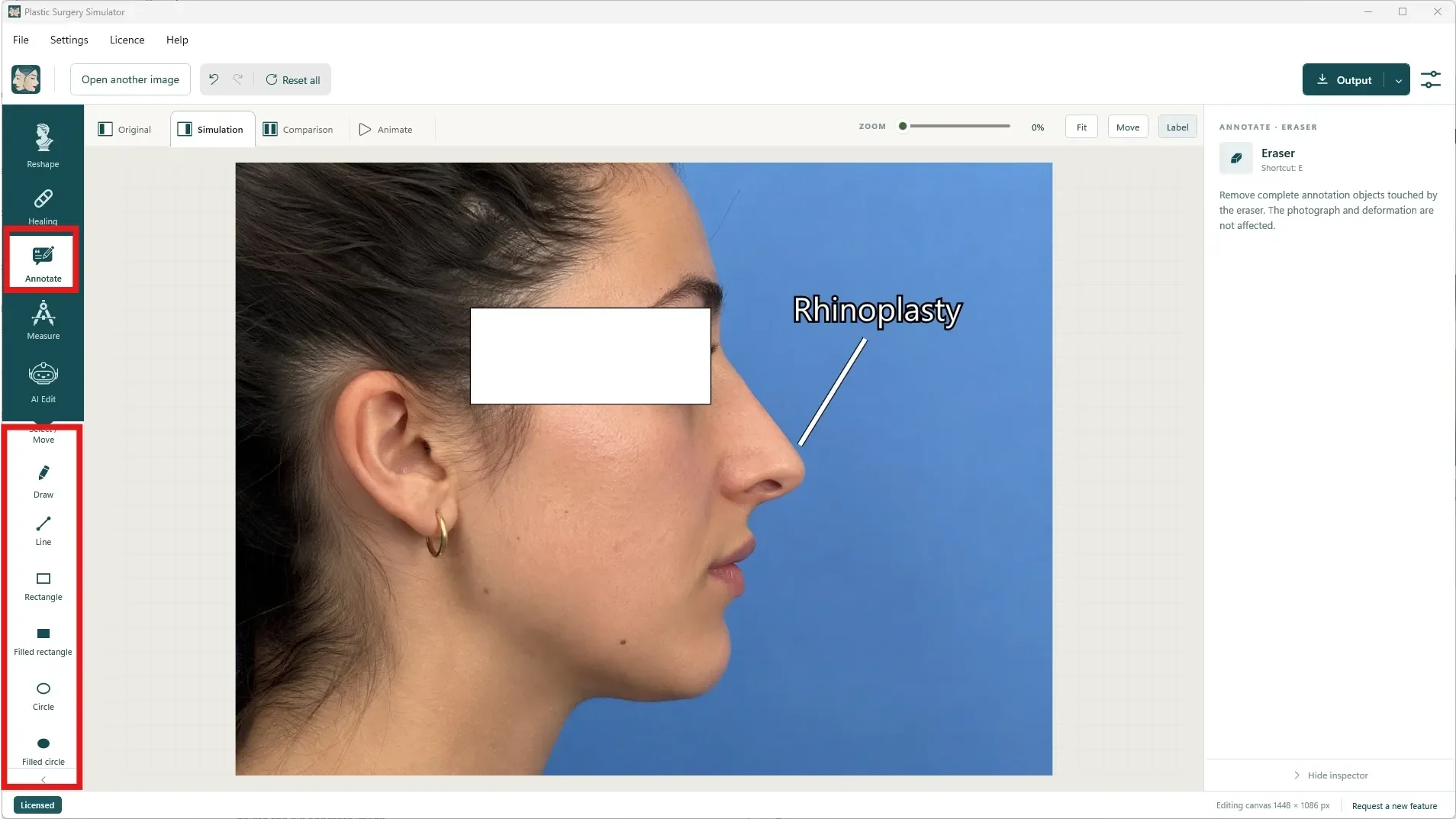
Explain where you will act.
Circle a treatment zone, draw an incision line or label an area. Annotations sit on their own layer above the Simulation, never on the Original, and travel into the images you save for consent files and operative notes.
- Draw, Line, Rectangle, Circle (outline or filled) and Text.
- Select, move and reshape any drawing by its handles.
- Choose colour, stroke size and font.
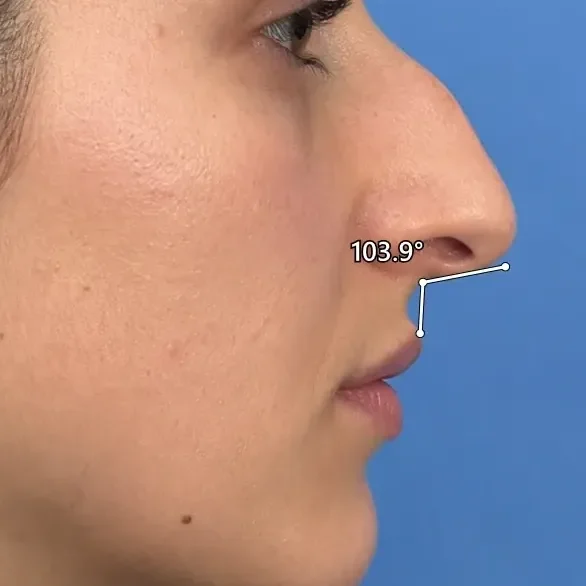
Angles and distances, on the photo.
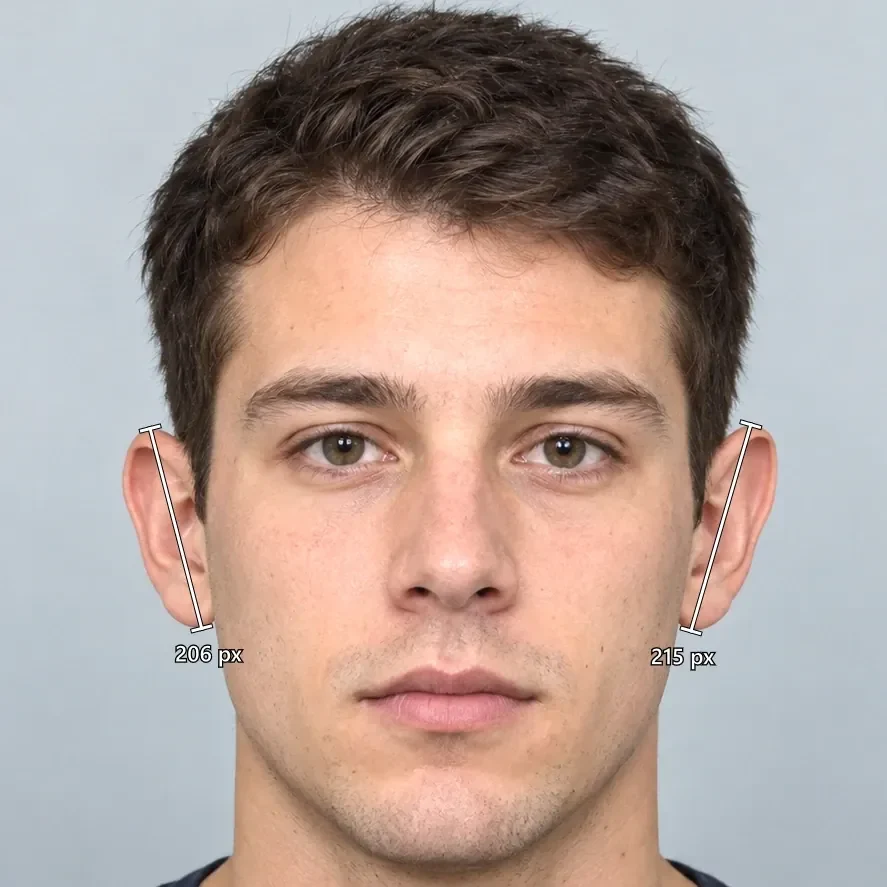
Show a patient that one eyebrow sits higher than the other, or that the nasolabial angle is acute. Measurements are drawn on the simulation, in degrees and image pixels; they are a consultation aid, not a medical measuring device.
Original, Simulation, Comparison: one click apart.
Three tabs show the same photo three ways, so you can move from where the patient starts to where the simulation leads without opening another file. A fourth tab, Animate, morphs one into the other in front of the patient.
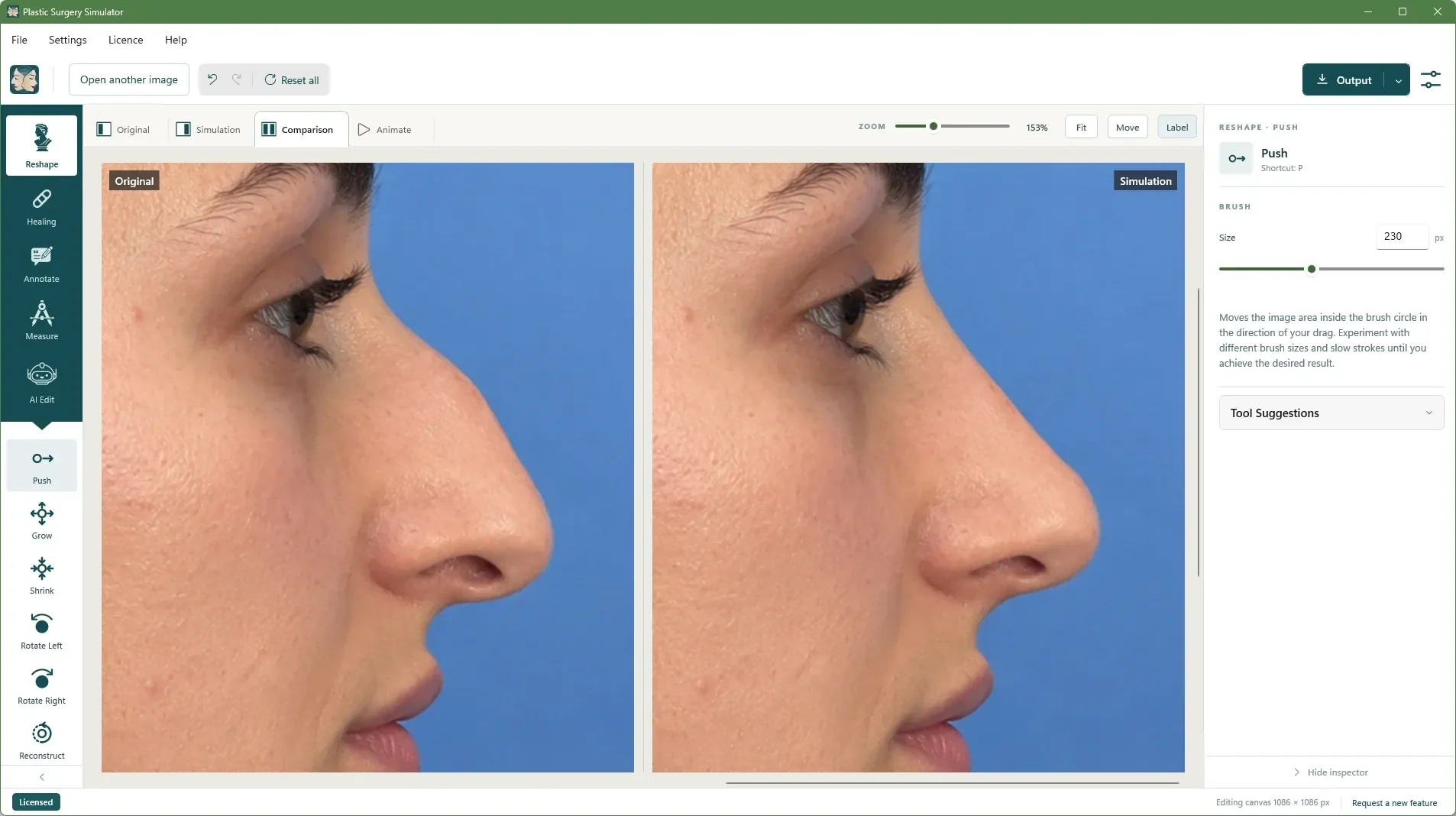
Original
The patient's photo, untouched by any brush, AI edit or annotation. It stays one click away, whatever you do on the simulation.
Simulation
Where you work: reshaping, Spot healing, AI Edit results, annotations and measurements all appear here, and Undo steps back through them.
Comparison
Original on the left, Simulation on the right. Zoom and scroll stay synchronised, so both sides show exactly the same detail. A new photo opens on this tab.
Save, print, share.
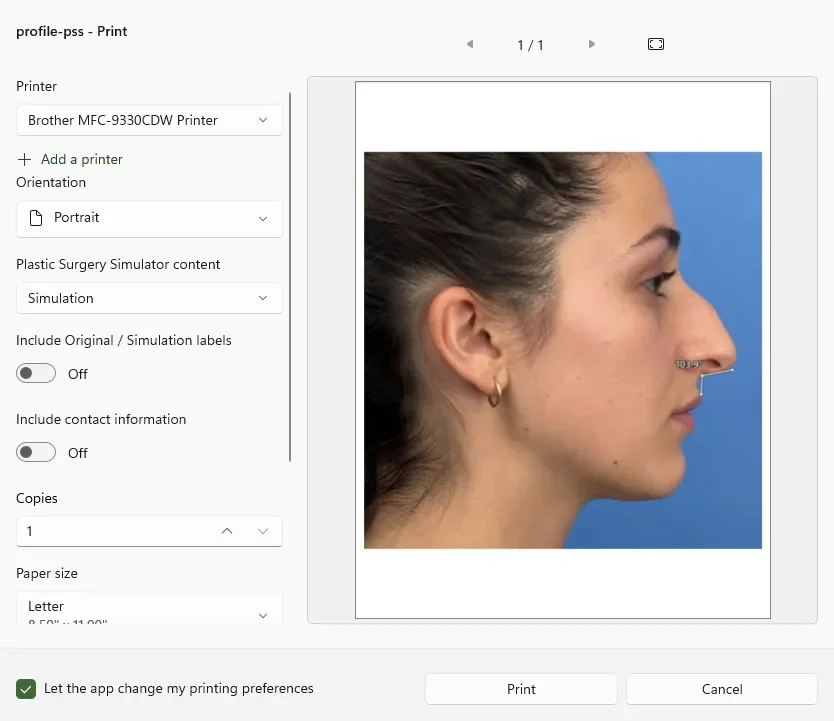
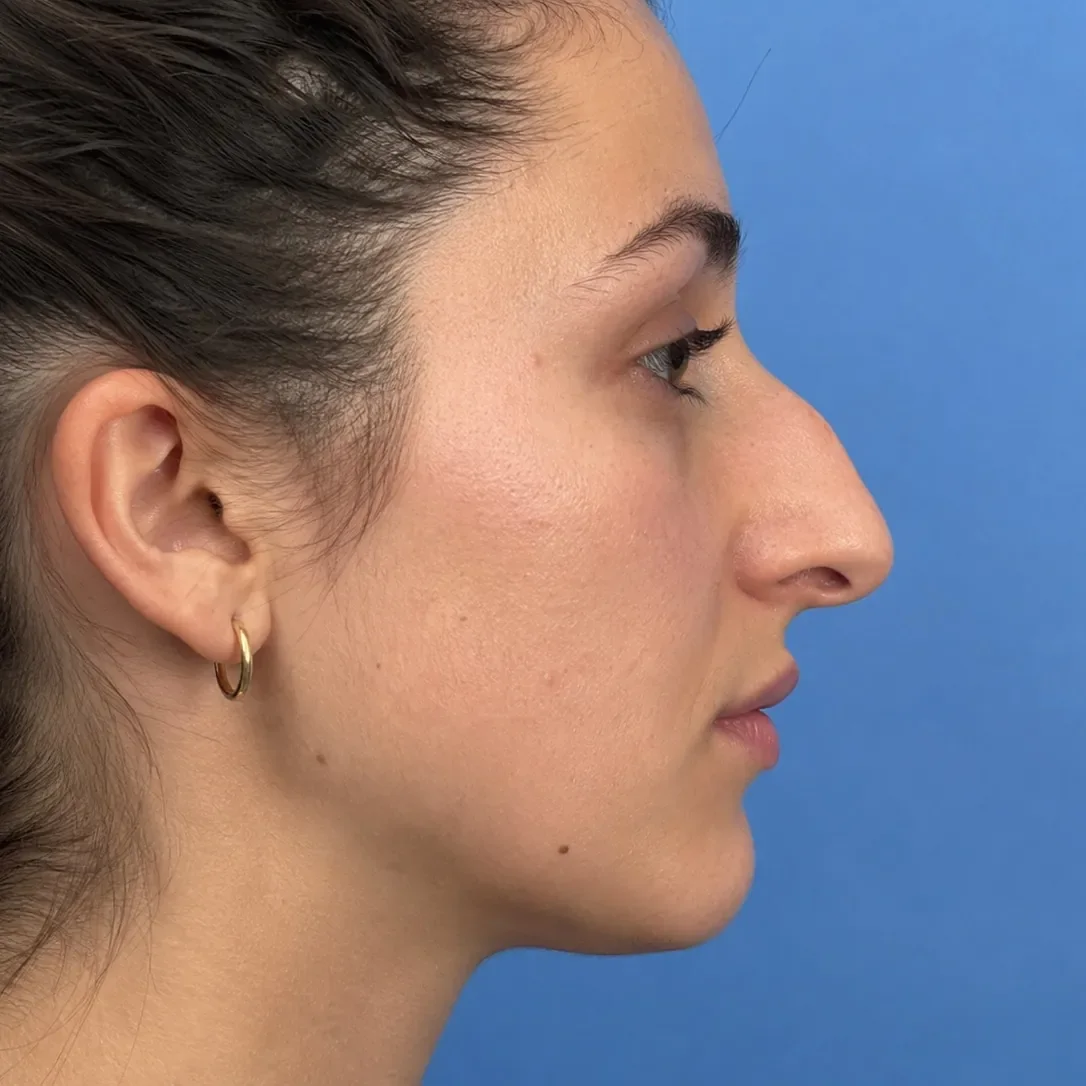
Save the original, the simulation, the comparison, or all three in one operation, as JPEG or PNG at the size you choose. Export the morph as an MP4 video, print, or hand an image to the sharing apps on your computer.
- Your watermark, if you choose: name, address, phone, email, website and disclaimer on every saved, printed or shared image.
- Saved images carry no camera, date or GPS metadata from the original file.
- Saved files are ordinary images: yours, even after the licence ends.
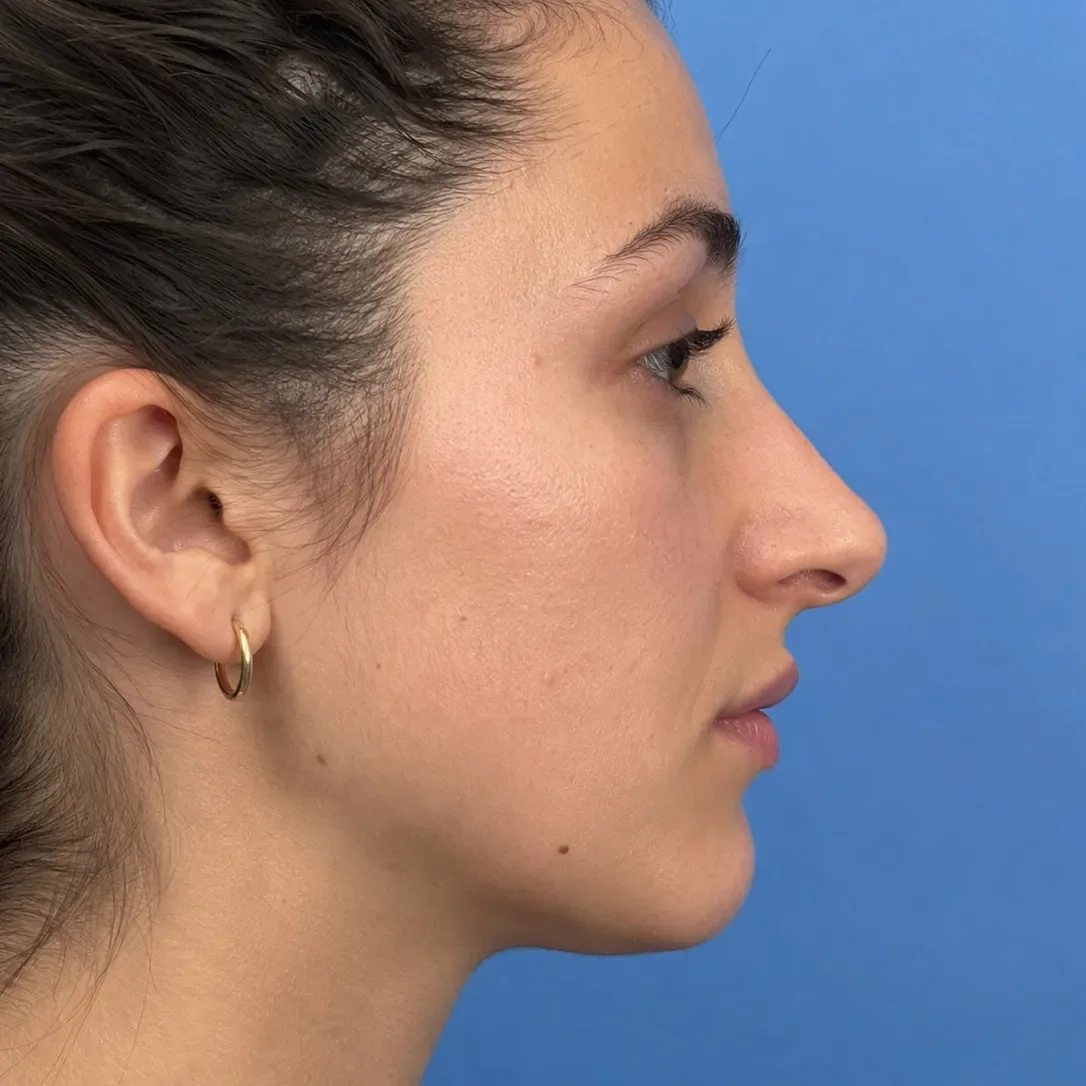 original.jpg simulation.jpg
 System requirements
Not a web page in a window: Plastic Surgery Simulator is written natively for each operating system, in C#/.NET and WinUI on Windows and in Swift, SwiftUI and AppKit on macOS. Native code gets the best performance from your computer.
| Platform | Requirements | Installation |
|---|---|---|
| Windows | Windows 10 or 11, 64-bit, with a hardware-accelerated GPU. Internet to activate. | Microsoft Store |
| macOS | An Apple silicon Mac running macOS 15 or later. Internet to activate. | Apple-notarized download |
Interface languages: English, French, Spanish, Brazilian Portuguese, Korean, Japanese, Italian, Turkish and Simplified Chinese.
Try it on your own patient photographs.
Download the complete software and simulate for seven days. No account, no credit card, nothing to cancel. Buy a key from the app or here when you are ready.