

 Français
  Español
  Português (Brasil)
  한국어
한국어  日本語
日本語  Italiano
  Türkçe
  简体中文
简体中文 Rhinoplasty simulation on your patient's photograph
Reduce a dorsal hump, refine and rotate the tip, straighten a deviation and check the nasolabial angle, live, while the patient watches. A typical profile takes a few strokes.
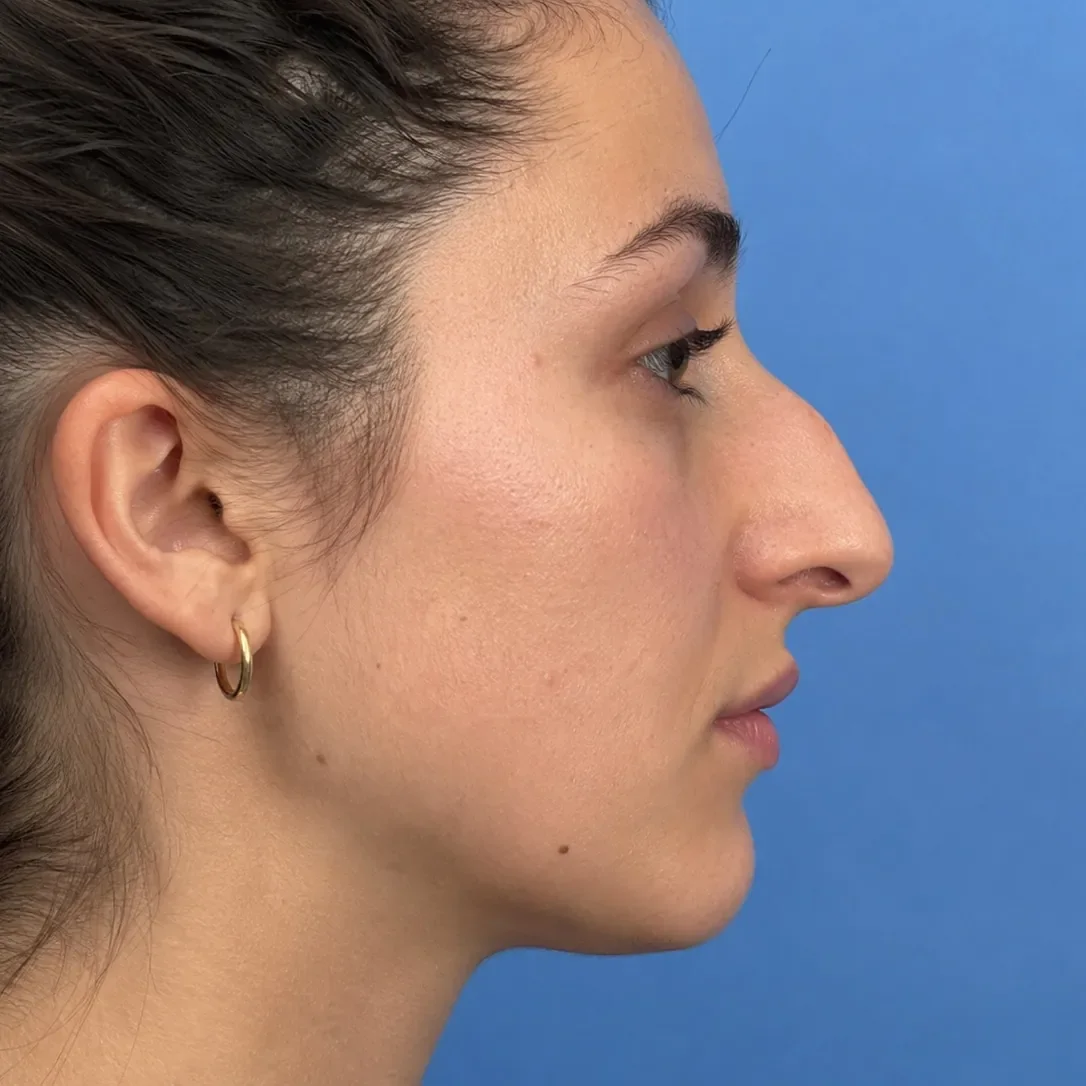
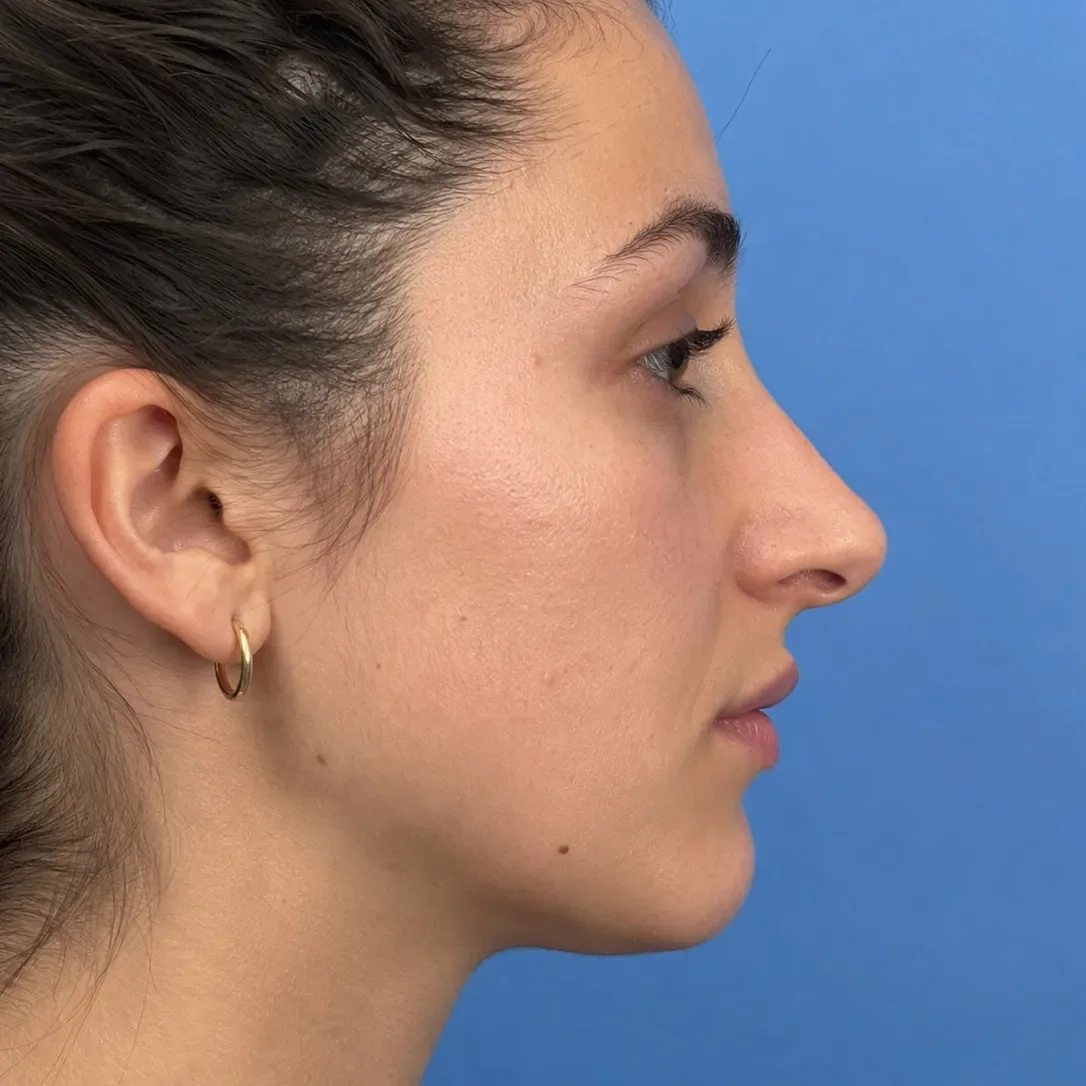
Rhinoplasty simulated with the Push, Shrink, Rotate brushes. Drag to compare.
Rhinoplasty in three steps
Reduce the dorsal hump
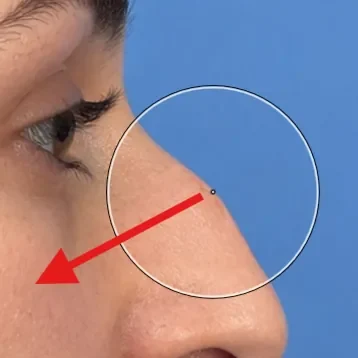
With Push, place the brush beside the nose, in the background, and move it toward the dorsum as if pressing it down. Only the soft outer ring of the brush reaches the skin, so the hump flattens gently and progressively. For a more direct effect, place the brush centre on the hump and drag inward.
Refine and rotate the tip
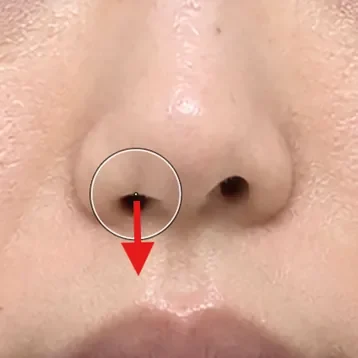
Short Push strokes lift or lower the tip and adjust projection. Shrink reduces a bulbous tip or a wide alar base with a few clicks. In front view, Rotate Left or Rotate Right straightens a deviated nose without changing its size.
Measure and compare
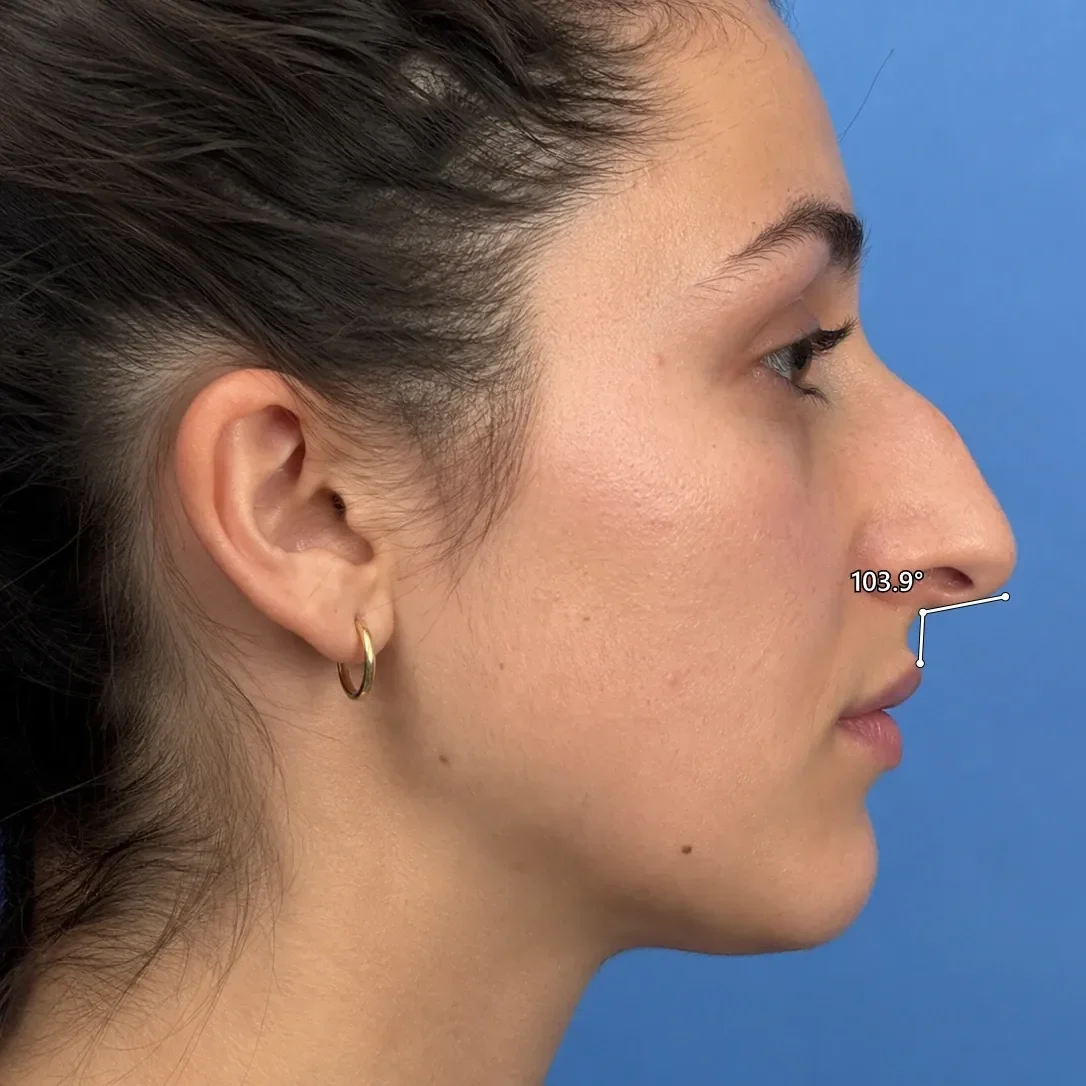
Draw the nasolabial angle with the Angle tool on the simulation, then switch to Comparison to show the original and the simulation side by side with synchronised zoom. Animate morphs one into the other for the patient.
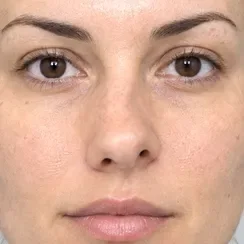
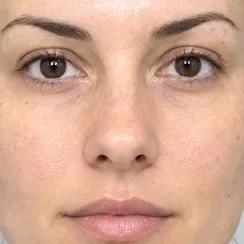
Tips from practice
- Agree on the profile line with the patient before discussing technique: it anchors the whole conversation.
- Show the nasolabial angle in degrees on the simulation. A number helps patients understand why tip rotation matters.
- Save the comparison with your practice details as a watermark for the consultation record.
- Use Comparison to show original and simulation side by side, and Animate to morph between them.
Unlimited, on your computer
Reshaping tools run locally, offline if you like, with no per-image fee. The patient's photo never leaves your computer, and the original is never modified.
- Undo, Redo and the Reconstruct brush to correct any area
- Save, print or share with your practice watermark
- Export the before-and-after morph as an MP4 video
Rhinoplasty simulation: questions
Can I simulate rhinoplasty in profile and in front view?
Yes. Open any profile, three-quarter or front-view photograph. Push and Shrink handle the dorsum, tip and alar base; the Rotate brushes straighten a deviated nose in front view.
Can I measure the nasolabial angle?
Yes. The Angle tool measures any angle in three clicks and shows the value in degrees on the photograph. The measurement appears in the images you save, print and share.
Does reshaping change the patient's skin texture?
Reshaping moves the photograph's own skin instead of painting new skin, so pores, freckles, lighting and skin texture stay those of the patient. The original photograph is never modified: it stays one click away in the Original and Comparison tabs.
Often discussed together
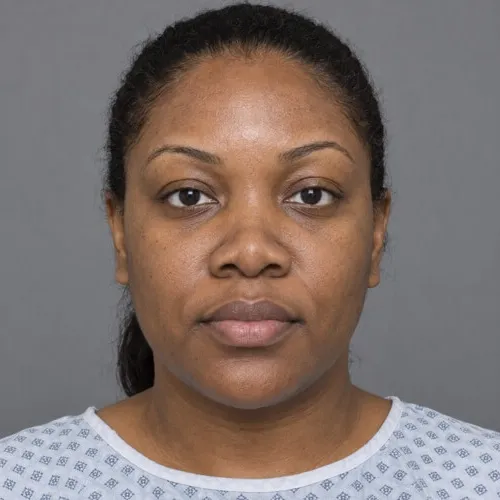 Before Simulation
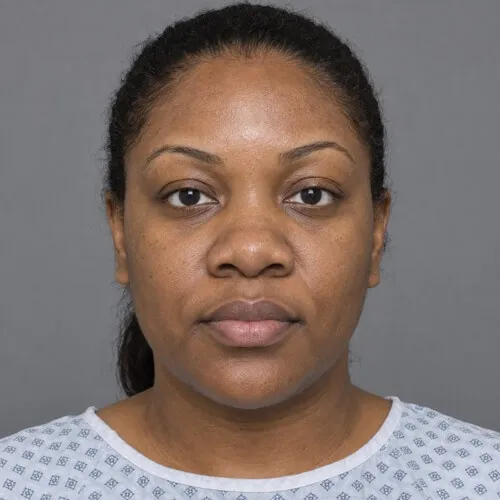
 Ethnic rhinoplasty
Nose narrowing that keeps skin texture and lighting.
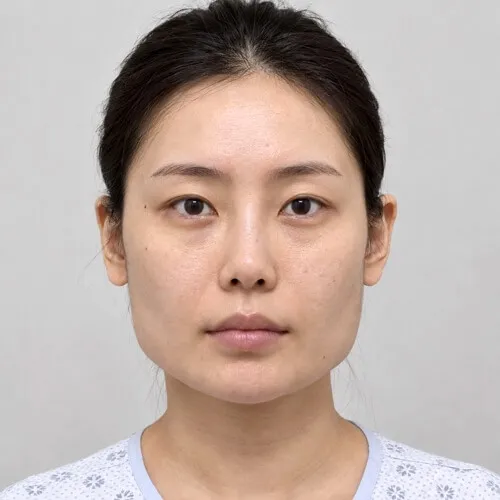
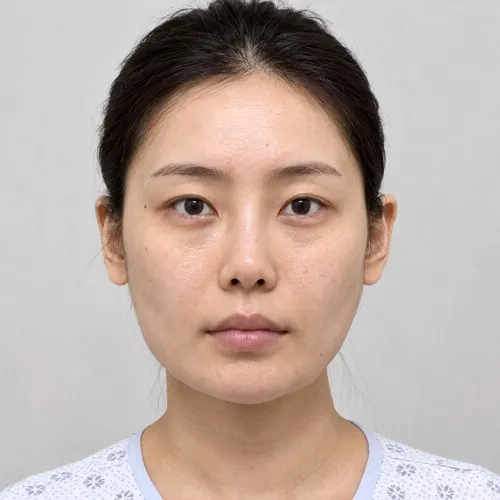 Before Simulation
 Jaw reduction
Jaw angle reduction for a softer facial contour.
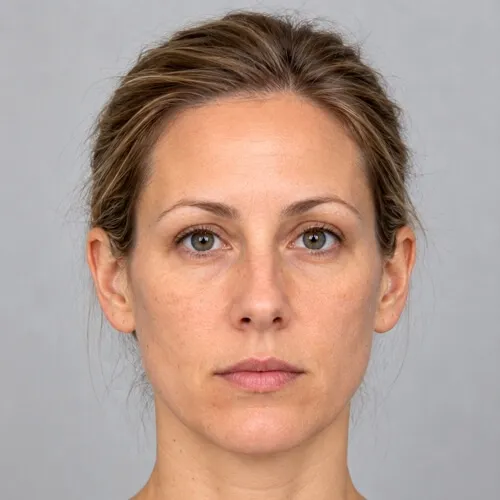
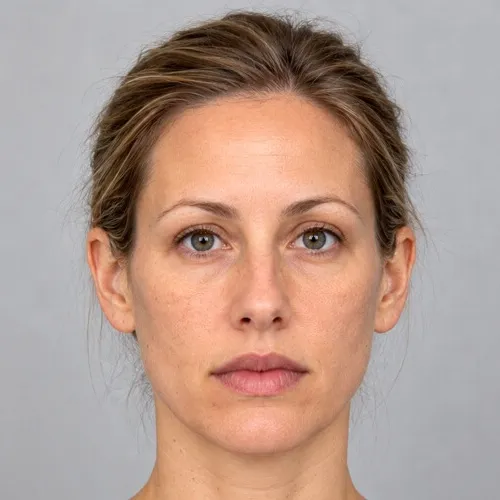 Before Simulation
 Lip augmentation
Lip volume for filler consultations.
Simulations are illustrations made to support a consultation. They are not a prediction or guarantee of a surgical result, which depends on anatomy, technique and healing.
Simulate rhinoplasty on your own patient photos.
Download the complete software and simulate for seven days. No account, no credit card, nothing to cancel. Buy a key from the app or here when you are ready.