

 Français
 Español
 Português (Brasil)
 한국어
 日本語
 Italiano
 Türkçe
 简体中文
Breast augmentation, reduction and lift simulation
Add volume and projection with Grow, reduce with Shrink, lift with Push. Build the result in small steps and stop when it matches the size you have discussed.
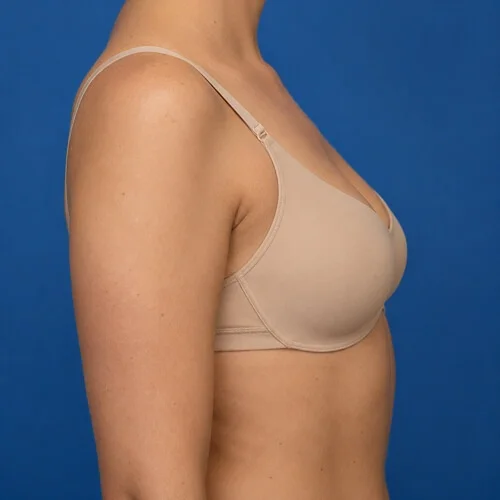
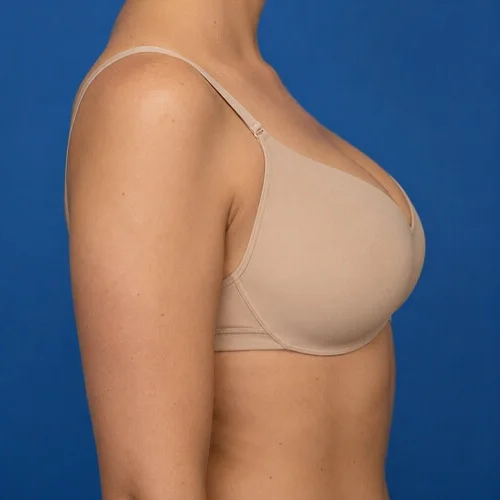
Breast augmentation simulated with the Grow, Shrink, Push brushes. Drag to compare.
Breast augmentation in three steps
Add volume with Grow
Click repeatedly over each breast: every click adds a small step of volume and projection. Work symmetrically, one click per side.
Shape and lift with Push
Push the lower pole or the nipple position upward to simulate a lift, and refine the upper pole contour.
Reduce with Shrink
For a reduction, Shrink removes volume in the same small steps.
Tips from practice
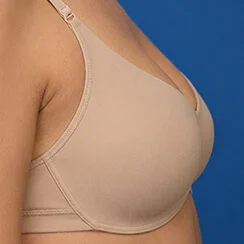
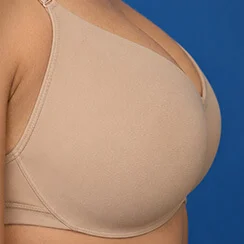
- Save several sizes in a row to discuss implant volume with the patient.
- Profile and front views together show both projection and width.
- Use Comparison to show original and simulation side by side, and Animate to morph between them.
Unlimited, on your computer
Reshaping tools run locally, offline if you like, with no per-image fee. The patient's photo never leaves your computer, and the original is never modified.
- Undo, Redo and the Reconstruct brush to correct any area
- Save, print or share with your practice watermark
- Export the before-and-after morph as an MP4 video
Breast augmentation simulation: questions
Can I show several implant sizes?
Yes. Grow builds volume click by click, so you can save each step as a separate image and compare them.
Does reshaping change the patient's skin texture?
Reshaping moves the photograph's own skin instead of painting new skin, so pores, freckles, lighting and skin texture stay those of the patient. The original photograph is never modified: it stays one click away in the Original and Comparison tabs.
Often discussed together
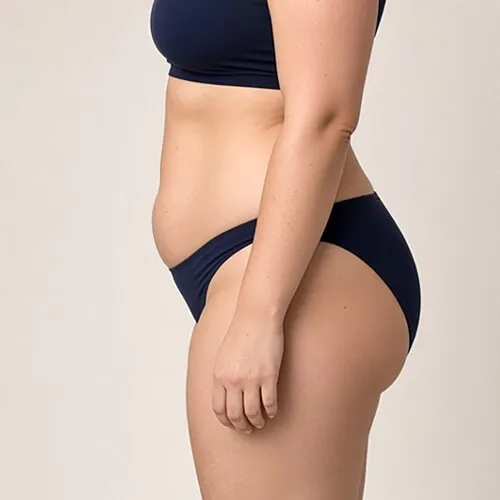
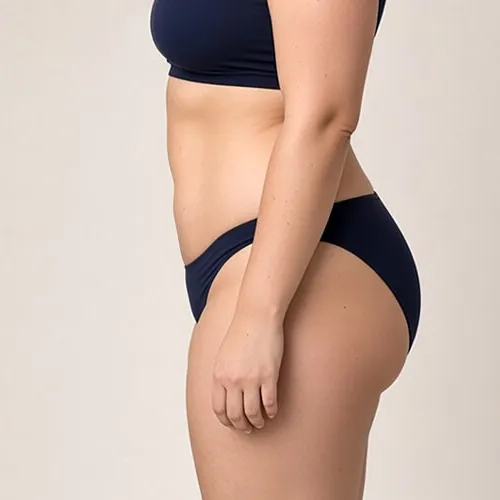 Before Simulation
Tummy tuck
Abdominal wall reduction and waist redefinition.
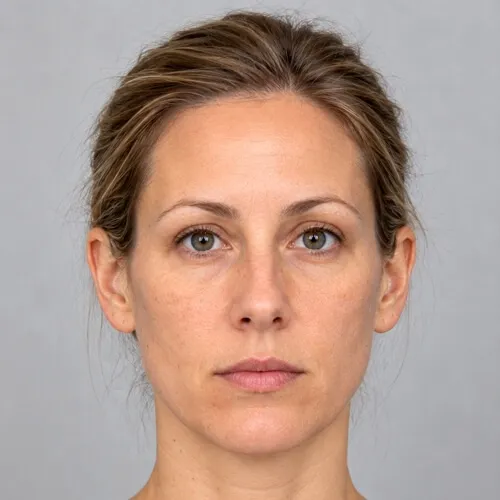
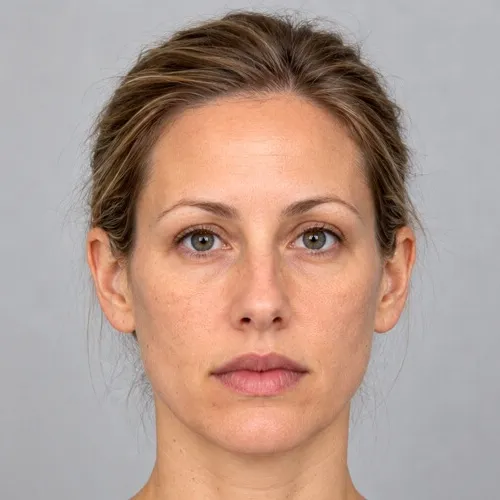 Before Simulation
Lip augmentation
Lip volume for filler consultations.
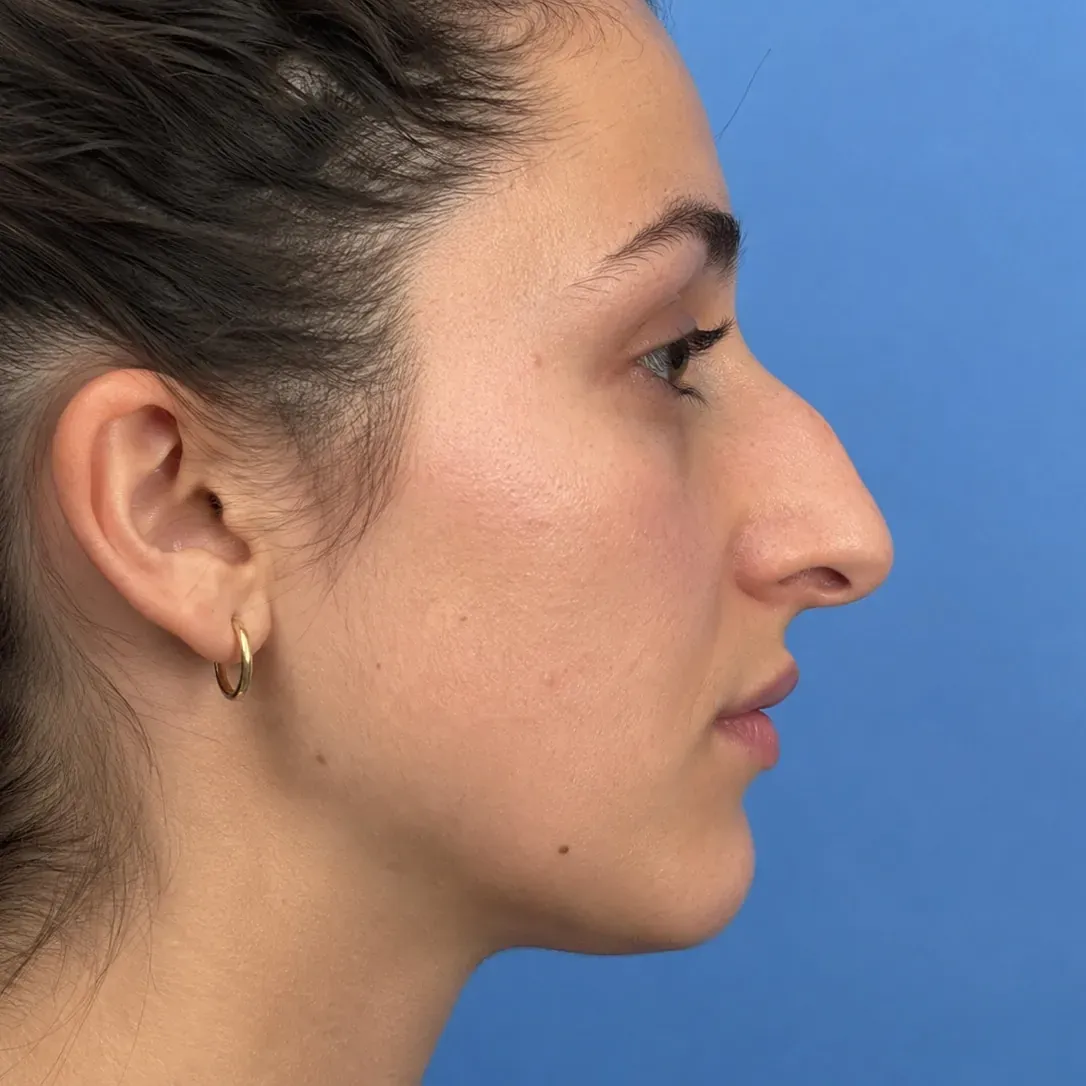
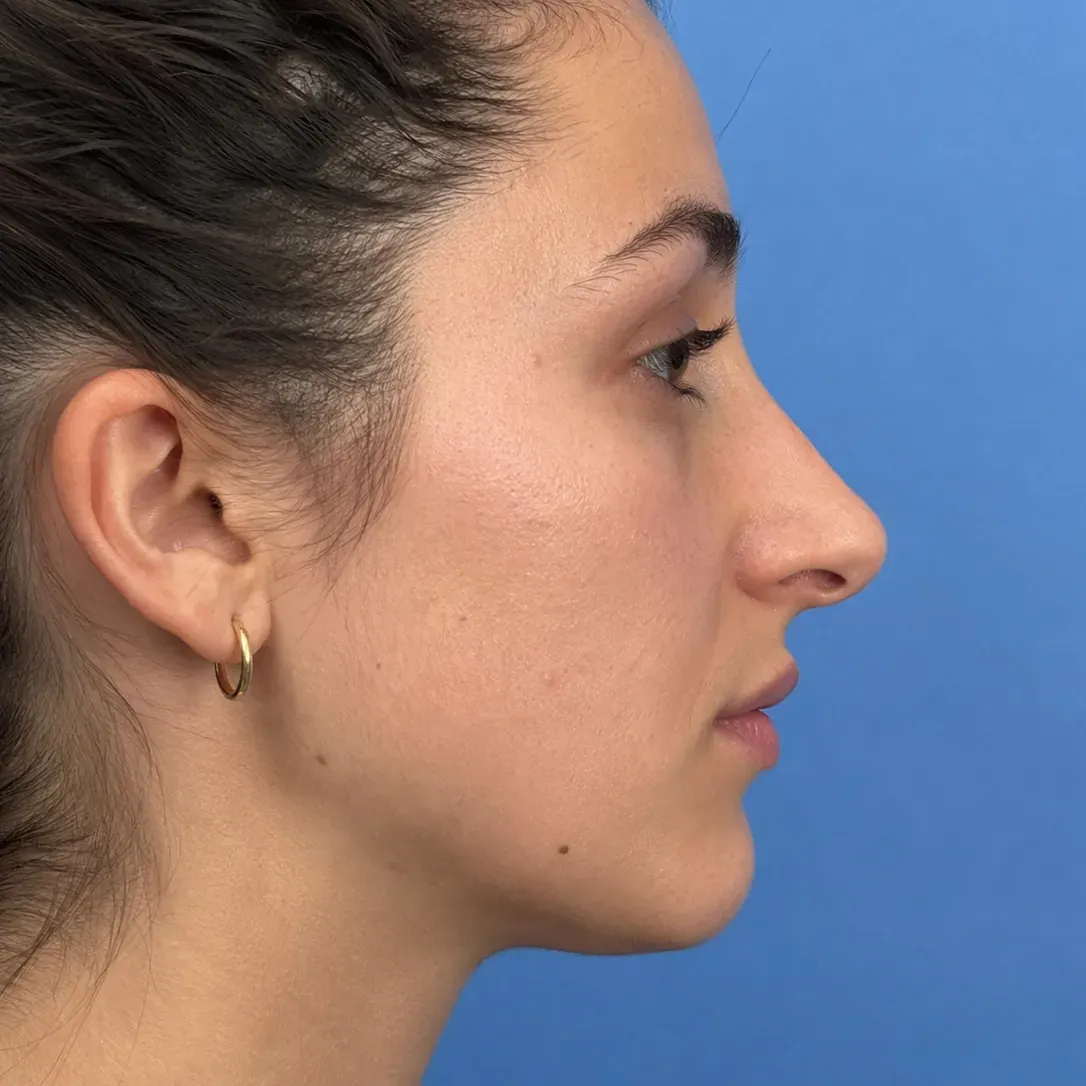 Before Simulation
Rhinoplasty
Dorsal reduction and tip refinement with Push.
Simulations are illustrations made to support a consultation. They are not a prediction or guarantee of a surgical result, which depends on anatomy, technique and healing.
Simulate breast augmentation on your own patient photos.
Download the complete software and simulate for seven days. No account, no credit card, nothing to cancel. Buy a key from the app or here when you are ready.